
Table of Contents
This is an old revision of the document!
Table of Contents
How our clusters work
We expect the HPC clusters users to know what an HPC cluster is and what parallel computing is. As all HPC clusters are different, it is important for any users to have a general understanding of the clusters they are working on, what they offer and what are their limitations.
This section gives an overview of the technical HPC infrastructure and how things work at the University of Geneva. More details can be found in the corresponding sections of this documentation.
The last part of this page gives more details for advanced users.
The clusters : Baobab, Yggdrasil and Bamboo
The University of Geneva owns three HPC clusters or supercomputers : Baobab, Yggdrasil and Bamboo.
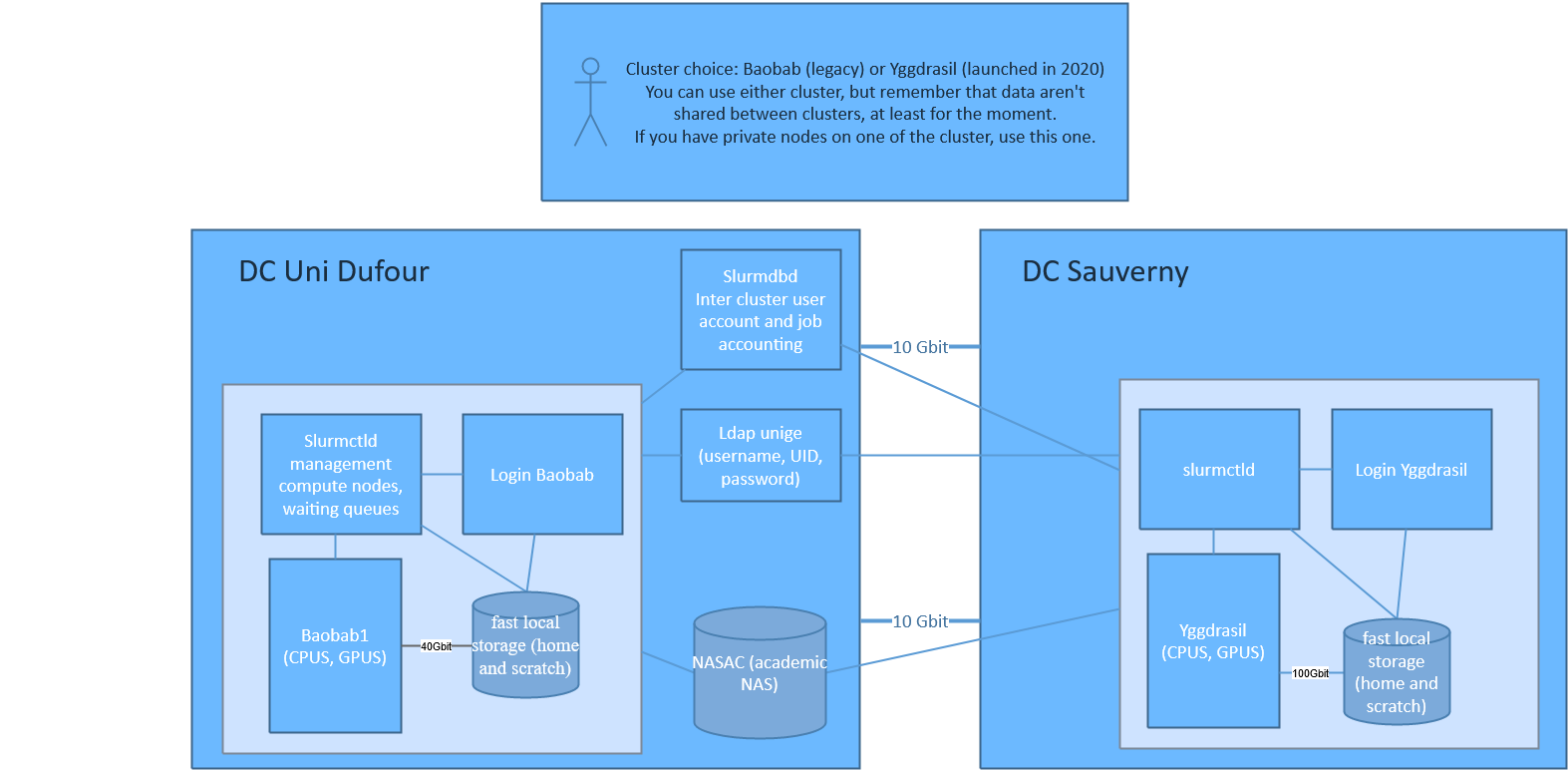
As for now, they are completely separated entities, each of them with their own private network, storage, and login node. What is shared is the accounting (user accounts and job usage).
Choose the right cluster for your work:
- You can use every clusters, but try to stick to one of them.
- Use the cluster where the private partition you have access to is located.
- If you need to access other servers not located in Astro, use Baobab or Bamboo to save bandwidth.
- As your data are stored locally on each cluster, avoid to use both clusters if this involves a lot of data moving between cluster.
You can't submit jobs from one cluster to the other one. This may be done in the future.
Boabab is physically located at Uni Dufour in Geneva downtown, while Yggdrasil is located at the Observatory of Geneva in Sauverny and Bamboo is located in campus Biotech
| cluster name | datacentre | Interconnect | public CPU | public GPU | Total CPU size | Total GPU size |
|---|---|---|---|---|---|---|
| Baobab | Dufour | IB 100GB EDR | ~900 | 0 | ~13'044 | 273 |
| Yggdrasil | Astro | IB 100GB EDR | ~3000 | 44 | ~8'008 | 52 |
| Bamboo | Biotech | IB 100GB EDR | ~5700 | 20 | ~5'700 | 20 |
How do our clusters work ?
Overview
Each cluster is composed of :
- a login node (aka headnode) allowing users to connect and submit jobs to the cluster. Aach user is limited to 2 CPU cores and 8 GB of RAM on the login node.
- many compute nodes which provide the computing power. The compute nodes are not all identical ; they all provide CPU cores (from 8 to 128 cores depending on the model), and some nodes also have GPUs or more RAM (see below).
- management servers that you don't need to worry about, that's the HPC engineers' job. The management servers are here to provide the necessary services such as all the applications (with EasyBuild / module), Slurm job management and queuing system, ways for the HPC engineers to (re-)deploy compute nodes automatically, etc.
- BeeGFS storage servers which provide “fast” parallel file system to store the data from your
$HOMEand for the scratch data ($HOME/scratch).
All those servers (login, compute, management and storage nodes) :
- run with the GNU/Linux distribution Rocky.
- are inter-connected on high speed InfiniBand network
- 40Gbit/s (QDR) for Baobab.
- 100Gbit/s (EDR) for Yggdrasil.
- 100Gbit/s (EDR) for Bamboo.
In order to provide hundreds of software and versions, we use EasyBuild / module. It allows you to load the exact version of a software/library that is compatible with your code. Learn more about EasyBuild/module
When you want to use some cluster's resources, you need to connect to the login node and submit a job
to Slurm which is our job management and queuing system. The job is submitted with an sbatch
script (a Bash/shell script with special instructions for Slurm such as how many CPU you need,
which Slurm partition to use how long your script will run and how to execute your code).
Slurm will place your job in a queue with other users' jobs, and find the fastest way to provide the
resources you asked for. When the resources are available, your job will start.
Learn more about Slurm
One important note about Slurm is the concept of partition. When you submit a job, you have to specify a partition that will give you access to some specific resources. For instance, you can submit a job that will use only CPU or GPU nodes.
Cost model
In September 2024, we announced via our mailing list (Some of the information is now obsolete. Please see below for the updated information.) that our service would become a paid offering. Users can find detailed information about this change on the page below and in our FAQ. We are committed to providing transparent communication and ensuring you have all the necessary details about our new pricing model.
Our service remains free in specific cases:
- Free usage as part of an educational course.
- Free usage through the annual allocation of CPU hours.
For additional needs, paid options are available:
- Pay-per-hour based on the FNS rate table.
- Purchase or rent compute nodes for more intensive workloads.
Summary:
- Starting this year, you receive a CPU hours credit based on the hardware you own (if any) in the cluster (private partition).
- You can find instructions on how to check your annual credit here: Resources Available for Research Groups. If you know your research group has bought some compute nodes but your PI doesn't appear in the report, please contact us.
- The credit calculation in the provided script assumes a 5-year hardware ownership period. However, if this policy was introduced after your compute nodes were purchased, we have extended the production duration by two years.
- To ensure flexibility and simplicity, we have standardized resource usage by converting CPU Memory, and GPU hours into CPU hours, using different conversion ratios depending on the GPU type. More details can be found here: Resource Accounting Uniformization.
- You can use your credit across all three clusters (Baobab, Yggdrasil, and Bamboo), not just on your private compute nodes. However, when using your own compute nodes, you will receive a higher priority.
- To check your group's current resource usage, visit: Report and Statistics with sreport.
Price per hour
Since we have unified our resources, we refer to CPUhours in a generic way, which may include CPU hours, GPU hours, or memory usage. Please refer to the conversion table for details. This means that any previous references specifically mentioning GPUs should no longer be considered. We'll update the table.
Overview:

You can find the whole table that you can send to the FNS here.

University of Genevea members will be charged the cost indicated by line “U1”. The line U2 and U3 are for external users such as company that would use the cluster.
Free CPU Hour Allocation
Each PI (Principal Investigator) is entitled to 100,000 CPU hours per year free of charge. This allocation applies per PI, not per individual user. See how to check PI and user past usage..
Progressive Pricing for HPC Compute Hours
A tiered pricing model applies to compute hour billing. Discounts increase as usage grows: once you reach 200K, 500K, and 1,000K compute hours, an additional 10% reduction is applied at each threshold. This ensures cost efficiency for large-scale workloads.
| Usage (Compute Hours) | Discount Applied |
|---|---|
| 0 – 199,999 | Base Rate |
| 200,000 – 499,999 | Base Rate -10% |
| 500,000 – 999,999 | Base Rate -20% |
| 1,000,000+ | Base Rate -30% |
Purchasing or Renting Private Compute Nodes
Research groups have the option to purchase or rent “private” compute nodes to expand the resources available in our clusters. This arrangement provides the group with a private partition, granting higher priority access to the specified nodes (resulting in reduced wait times) and extended job runtimes of up to 7 days (compared to 4 days for public compute nodes).
Key Rules and Details
- Shared Integration: The compute node is added to the corresponding shared partition. Other users may utilize it when the owning group is not using it. For details, refer to the partitions section.
- Usage Limit: Each research group may consume up to 60% of the theoretical usage credit associated with the compute node. This policy ensures fair access to shared cluster resources. . See the Usage limit policy for more details
- Cost: In addition to the base cost of the compute node, a 15% surcharge is applied to cover operational expenses such as cables, racks, switches, and storage (not yet valid).
- Ownership Period: The compute node remains the property of the research group for 5 years. After this period, the node may remain in production but will only be accessible via public and shared partitions.
- Warranty and Repairs: Nodes come with a 3-year warranty. If the node fails after this period, the research group is responsible for 100% of repair costs. Repairing the node involves sending it to the vendor for diagnostics and a quote, with a maximum diagnostic fee of 420 CHF, even if the node is irreparable.
- Administrative Access: The research group does not have administrative rights over the node.
- Maintenance: The HPC team handles the installation and maintenance of the compute node, ensuring it operates consistently with other nodes in the cluster.
- Decommissioning: The HPC team may decommission the node if it becomes obsolete, but it will remain in production for at least 5 years.
Cost of Renting a Compute Node
The cost of renting a compute node is calculated based on the vendor price of the node, adjusted to account for operational and infrastructure expenses. Specifically, we add 15% to the vendor price to cover additional costs, such as maintenance and administrative overhead. The total cost is then amortized over an estimated 5-year lifespan of the compute node to determine the monthly rental rate.
For example, consider a CPU compute node with a vendor price of 14,361 CHF. Adding 15% for extra costs brings the total to 16,515.15 CHF. Dividing this by 60 months (5 years) results in a monthly rental cost of approximately 275.25 CHF.
Currently, we only rent standard AMD compute nodes, which have two 64-CPU cores and 512 GB of RAM. You will receive 1.34 million billing credits per year with this model.
The minimum rental period for a compute node is six months. Any unused allocated resources will be lost at the end of the year.
For more details or to request a specific quote, please contact the HPC support team.
Usage Limits
Users are entitled to utilize up to 60% of the computational resources they own or rent within the cluster. Example calculation if you rent a compute node with 128 CPU cores and 512GB RAM for one year:
- CPU contribution: 128 cores × 1.0 (factor)
- Memory contribution: 512 GB × 0.25 (factor)
- Time period: 24 hours × 365 days
- Max usage rate: 0.6
Total: (128 × 1.0 + 512 × 0.25) × 24 × 365 × 0.6 = 1,342,848 core-hours
This credit can be used across any of our three clusters – Bamboo, Baobab, and Yggdrasil – regardless of where the compute node was rented or purchased.
The main advantage is that you are not restricted to using your private nodes, but can access the three clusters and even the GPUs.
We are developing scripts to allow to check the usage and the amount of hours you have the right to use regarding the hardware your group owns.
The key distinction when using your own resources is that you benefit from a higher scheduling priority, ensuring quicker access to computational resources. As well, you are not restricted to using your private nodes, but can access the three clusters and even the GPUs.
For more details, please contact the HPC support team.
CPU and GPU server example pricing
See below the current price of a compute node (without the extra 15% and without VAT)
AMD CPU
- 2 x 64 Core AMD EPYC 7742 2.25GHz Processor
- 512GB DDR4 3200MHz Memory (16x32GB)
- 100G IB EDR card
- 960GB SSD
- ~ 14'442.55 CHF TTC
- 2 x 96 Core AMD EPYC 9754 2.4GHz Processor
- 768GB DDR45 4800MHz Memory (24x32GB)
- 100G IB EDR card
- 960GB SSD
- ~ 16'464 CHF TTC
Key differences:
- + 9754 has higher memory performance of up to 460.8 GB/s vs 7763 which has 190.73 GB/s
- + 9754 has a bigger cache
- - 9754 is more expensive
- - power consumption is 400W for 9754 vs 240W for 7763
- - 9754 is more difficult to cool as the inlet temperature for air colling must be 22° max
GPU H100 with AMD
- 2 x 64 Core AMD EPYC 9554 3.15GHz Processor
- 768GB DDR4 4800MHz ECC Server Memory (24x 32GB / 0 free slots)
- 1 x 7.68TB NVMe Intel 24×7 Datacenter SSD (14PB written until warranty end)
- 4 x nVidia Ampere H100 94GB PCIe GPU (max. 8 GPUs possible)
- ~ 124k CHF HT
- ~ 28,5k CHF HT per extra GPU
GPU RTX4090 with AMD
- 2 x 64 Core AMD EPYC 9554 3.10GHz Processor
- 384 GB DDR4 4800MHz ECC Server Memory
- 8 x nVidia RTX 4090 24GB Graphics Controller
- ~ 44k CHF HT
We usually install and order the nodes twice per year.
If you want to ask a financial contribution from UNIGE you must complete submit a request to the COINF.
Use Baobab for teaching
Baobab, our HPC infrastructure, supports educators in providing students with hands-on HPC experience.
Teachers can request access via [dw.unige.ch](final link to be added later, use hpc@unige.ch in the meantime), and once the request is fulfilled, a special account named <PI_NAME>_teach will be created for the instructor. Students must specify this account when submitting jobs for course-related work (e.g., --account=<PI_NAME>_teach).
A shared storage space can also be created optionally, accessible at /home/share/<PI_NAME>_teach and/or /srv/beegfs/scratch/shares/<PI_NAME>_teach.
All student usage is free of charge if they submit their job to the correct account.
We strongly recommend that teachers use and promote our user-friendly web portal at OpenOndDemand which supports tools like Matlab, JupyterLab, and more. Baobab helps integrate real-world computational tools into curricula, fostering deeper learning in HPC technologies.
How do I use your clusters ?
Everyone has different needs for their computation. A typical example of usage of the cluster would consists of these steps :
- connect to the login node
- this will give you access to the data from your
$HOMEdirectory - execute an sbatch script which will request resources to Slurm for the estimated runtime (i.e. : 16 CPU cores, 8 GB RAM for up to 7h on partition “shared-cpu”). The sbatch will contain instructions/commands :
- for Slurm scheduler to access compute resources for a certain time
- to load the right application and libraries with
modulefor your code to work - on how to execute your application.
- the Slurm job will be placed in the Slurm queue
- once the requested resources are available, your job will start and be executed on one or multiple compute nodes (which can all access the BeeGFS
$HOMEand$HOME/scratchdirectories). - all communication and data transfer between the nodes, the storage and the login node go through the InfiniBand network.
If you want to know what type of CPU and architecture is supported, check the section For Advanced users.
For advanced users
Infrastructure schema

Compute nodes
Both clusters contain a mix of “public” nodes provided by the University of Geneva, a “private” nodes in general funded 50% by the University through the COINF and 50% by a research group for instance. Any user of the clusters can request compute resources on any node (public and private), but a research group who owns “private” nodes has a higher priority on its “private” nodes and can request a longer execution time.
CPUs models available
Several CPU models are available across the three clusters. The table below summarizes the available resources.
| Model | Generation | Architecture | Cores per Socket | Freq |
|---|---|---|---|---|
| E5-2660V0 | V3 | Sandy Bridge EP | 8 | |
| E5-2643V3 | V5 | Haswell-EP | 6 | 3.4GHz |
| E5-2630V4 | V6 | Broadwell-EP | 10 | 2.2GHz |
| E5-2637V4 | V6 | Broadwell-EP | 4 | 2.2GHz |
| E5-2643V4 | V6 | Broadwell-EP | 6 | 3.4GHz |
| E5-2680V4 | V6 | Broadwell-EP | 14 | 2.4GHz |
| EPYC-7601 | V7 | Naples | 32 | 2.2GHz |
| EPYC-7302P | V8 | Rome | 16 | 3.0GHz |
| EPYC-7742 | V8 | Rome | 64 | 2.25GHz |
| GOLD-6234 | V9 | Cascade Lake | 8 | 3.30GHz |
| GOLD-6240 | V9 | Cascade Lake | 18 | 2.60GHz |
| GOLD-6244 | V9 | Cascade Lake | 8 | 3.60GHz |
| SILVER-4208 | V9 | Cascade Lake | 8 | 2.10GHz |
| SILVER-4210R | V9 | Cascade Lake | 10 | 2.6GHz |
| EPYC-72F3 | V10 | Milan | 8 | 3.7GHz |
| EPYC-7763 | V10 | Milan | 64 | 2.45GHz |
| EPYC-9554 | V11 | Genoa | 64 | 3.10GHz |
| EPYC-9654 | V12 | Genoa | 96 | 3.70GHz |
| EPYC-9754 | V13 | Genoa | 128 | 3.70GHz |
GPUs models available
Several GPU models are available across the three clusters. The table below summarizes the available resources.
| Model | Memory | GRES | Constraint gpu arch | Compute Capability | CUDA min → max | Feature | Billing Weight |
|---|---|---|---|---|---|---|---|
| Titan RTX | 24GB | nvidia_titan_rtx | COMPUTE_TYPE_TURING | COMPUTE_CAPABILITY_7_5 | 10.0 → 13.0 | COMPUTE_MODEL_NVIDIA_TITAN_RTX | 1 |
| Titan X | 12GB | nvidia_titan_x | COMPUTE_TYPE_PASCAL | COMPUTE_CAPABILITY_6_1 | 8.0 → 12.9 | COMPUTE_MODEL_NVIDIA_TITAN_X | 1 |
| P100 | 12GB | tesla_p100-pcie-12gb | COMPUTE_TYPE_PASCAL | COMPUTE_CAPABILITY_6_0 | 8.0 → 12.9 | COMPUTE_MODEL_TESLA_P100_PCIE_12GB | 1 |
| RTX 2080 Ti | 11GB | nvidia_geforce_rtx_2080_ti | COMPUTE_TYPE_TURING | COMPUTE_CAPABILITY_7_5 | 10.0 → 13.0 | COMPUTE_MODEL_NVIDIA_GEFORCE_RTX_2080_TI | 2 |
| RTX 3080 | 10GB | nvidia_geforce_rtx_3080 | COMPUTE_TYPE_AMPERE | COMPUTE_CAPABILITY_7_0 | 11.0 → 13.0 | COMPUTE_MODEL_NVIDIA_GEFORCE_RTX_3080 | 3 |
| V100 | 32GB | tesla_v100-pcie-32gb | COMPUTE_TYPE_VOLTA | COMPUTE_CAPABILITY_7_0 | 9.0 → 12.9 | COMPUTE_MODEL_TESLA_V100_PCIE_32GB | 3 |
| A100 40GB | 40GB | nvidia_a100-pcie-40gb | COMPUTE_TYPE_AMPERE | COMPUTE_CAPABILITY_8_0 | 11.0 → 13.0 | COMPUTE_MODEL_NVIDIA_A100_PCIE_40GB | 5 |
| RTX 3090 | 24GB | nvidia_geforce_rtx_3090 | COMPUTE_TYPE_AMPERE | COMPUTE_CAPABILITY_8_6 | 11.0 → 13.0 | COMPUTE_MODEL_NVIDIA_GEFORCE_RTX_3090 | 5 |
| RTX A5000 | 25GB | nvidia_rtx_a5000 | COMPUTE_TYPE_AMPERE | COMPUTE_CAPABILITY_8_6 | 11.0 → 13.0 | COMPUTE_MODEL_NVIDIA_RTX_A5000 | 5 |
| RTX A5500 | 24GB | nvidia_rtx_a5500 | COMPUTE_TYPE_AMPERE | COMPUTE_CAPABILITY_8_6 | 11.0 → 13.0 | COMPUTE_MODEL_NVIDIA_RTX_A5500 | 5 |
| A100 80GB | 80GB | nvidia_a100_80gb_pcie | COMPUTE_TYPE_AMPERE | COMPUTE_CAPABILITY_8_0 | 11.0 → 13.0 | COMPUTE_MODEL_NVIDIA_A100_80GB_PCIE | 8 |
| RTX 4090 | 24GB | nvidia_geforce_rtx_4090 | COMPUTE_TYPE_ADA | COMPUTE_CAPABILITY_8_9 | 11.8 → 13.0 | COMPUTE_MODEL_NVIDIA_GEFORCE_RTX_4090 | 8 |
| RTX A6000 | 48GB | nvidia_rtx_a6000 | COMPUTE_TYPE_AMPERE | COMPUTE_CAPABILITY_8_6 | 11.0 → 13.0 | COMPUTE_MODEL_NVIDIA_RTX_A6000 | 8 |
| RTX 5000 | 32GB | nvidia_rtx_5000 | COMPUTE_TYPE_ADA | COMPUTE_CAPABILITY_8_9 | 11.8 → 13.0 | COMPUTE_MODEL_NVIDIA_RTX_5000 | 9 |
| RTX 5090 | 32GB | nvidia_geforce_rtx_5090 | COMPUTE_TYPE_BLACKWELL | COMPUTE_CAPABILITY_12_0 | 12.8 → 13.0 | COMPUTE_MODEL_NVIDIA_GEFORCE_RTX_5090 | 10 |
| H100 | 94GB | nvidia_h100_nvl | COMPUTE_TYPE_HOPPER | COMPUTE_CAPABILITY_9_0 | 11.8 → 13.0 | COMPUTE_MODEL_NVIDIA_H100_NVL | 14 |
| RTX Pro 6000 | 96GB | nvidia_rtx_pro_6000_blackwell | COMPUTE_TYPE_BLACKWELL | COMPUTE_CAPABILITY_9_0 | 12.8 → 13.0 | COMPUTE_MODEL_NVIDIA_RTX_PRO_6000_BLACKWELL | 16 |
| H200 | 141GB | nvidia_h200_nvl | COMPUTE_TYPE_HOPPER | COMPUTE_CAPABILITY_9_0 | 11.8 → 13.0 | COMPUTE_MODEL_NVIDIA_H200_NVL | 17 |
See here how to request GPU for your jobs.
Bamboo
CPU MODELS — bamboo
GPUs on Bamboo
Baobab
CPU MODELS — baobab
Since our clusters are regularly expanded, the nodes are not all from the same generation. You can see the details in the following table.
CPU MODELS — baobab
| Model | Generation | Architecture | Freq | Nb core | Memory | Nodeset |
|---|---|---|---|---|---|---|
| E5-2660V0 | V3 | Sandy Bridge EP | 16 | 62GB | cpu001 | |
| E5-2630V4 | V6 | Broadwell-EP | 2.2GHz | 20 | 86GB | cpu199 |
| E5-2630V4 | V6 | Broadwell-EP | 2.2GHz | 20 | 94GB | cpu[173-185,187-198,200-201,205-213,220-229,237-244,247-264] |
| E5-2630V4 | V6 | Broadwell-EP | 2.2GHz | 20 | 224GB | cpu246 |
| E5-2630V4 | V6 | Broadwell-EP | 2.2GHz | 20 | 251GB | cpu245 |
| E5-2637V4 | V6 | Broadwell-EP | 2.2GHz | 8 | 503GB | cpu[218-219] |
| E5-2643V4 | V6 | Broadwell-EP | 3.4GHz | 12 | 62GB | cpu[202,216-217] |
| E5-2680V4 | V6 | Broadwell-EP | 2.4GHz | 28 | 503GB | cpu203 |
| EPYC-7742 | V8 | Rome | 2.25GHz | 128 | 503GB | cpu[273-277,285-307,314-335] |
| EPYC-7742 | V8 | Rome | 2.25GHz | 128 | 1007GB | cpu[312-313] |
| GOLD-6240 | V9 | Cascade Lake | 2.60GHz | 36 | 187GB | cpu[084-090,265-272,278-284,308-311,336-349] |
| GOLD-6244 | V9 | Cascade Lake | 3.60GHz | 16 | 754GB | cpu351 |
| EPYC-9654 | V12 | Genoa | 3.70GHz | 192 | 768GB | cpu[350,352] |
The “generation” column is just a way to classify the nodes on our clusters. In the following table you can see the features of each architecture.
| MMX | SSE | SSE2 | SSE3 | SSSE3 | SSE4.1 | SSE4.2 | AVX | F16C | AVX2 | FMA3 | NB AVX-512 FMA | |
|---|---|---|---|---|---|---|---|---|---|---|---|---|
| Westmere-EP | YES | YES | YES | YES | YES | YES | YES | NO | NO | NO | NO | |
| Sandy Bridge-EP | YES | YES | YES | YES | YES | YES | YES | YES | NO | NO | NO | |
| Ivy Bridge-EP | YES | YES | YES | YES | YES | YES | YES | YES | YES | NO | NO | |
| Haswell-EP | YES | YES | YES | YES | YES | YES | YES | YES | YES | YES | NO | |
| Broadwell-EP | YES | YES | YES | YES | YES | YES | YES | YES | YES | YES | YES | |
| Naples | YES | YES | YES | YES | YES | YES | YES | YES | YES | YES | YES | |
| Rome | YES | YES | YES | YES | YES | YES | YES | YES | YES | YES | YES | |
| Milan | YES | YES | YES | YES | YES | YES | YES | YES | YES | YES | YES | |
| Genoa | YES | YES | YES | YES | YES | YES | YES | YES | YES | YES | YES | |
| Cascade Lake | YES | YES | YES | YES | YES | YES | YES | YES | YES | YES | YES | 2 |
GPUs on Baobab
In the following table you can see which type of GPU is available on Baobab.
| Model | Memory per GPU | Nodeset |
|---|---|---|
| A100 40GB | 40GB | gpu[020,022,027-028,030-031] |
| A100 80GB | 80GB | gpu[027,029,032-033,045] |
| RTX 2080 Ti | 11GB | gpu[011,013-016,018-019] |
| RTX 3080 | 10GB | gpu[023-024,036-043] |
| RTX 3090 | 24GB | gpu[017,021,025-026,034-035] |
| RTX 4090 | 24GB | gpu049 |
| RTX 5000 | 32GB | gpu050 |
| RTX A5000 | 25GB | gpu[044,047] |
| RTX A5500 | 24GB | gpu046 |
| RTX A6000 | 48GB | gpu048 |
| Titan X | 12GB | gpu[002,008-010] |
| P100 | 12GB | gpu[004-007] |
Link to see the GPU details https://developer.nvidia.com/cuda-gpus#compute
Yggdrasil
CPU MODELS — yggdrasil
Since our clusters are regularly expanded, the nodes are not all from the same generation. You can see the details in the following table.
| Model | Generation | Architecture | Freq | Nb core | Memory | Nodeset |
|---|---|---|---|---|---|---|
| EPYC-7742 | V8 | Rome | 2.25GHz | 128 | 503GB | cpu[123-124,135-150] |
| EPYC-7742 | V8 | Rome | 2.25GHz | 128 | 1007GB | cpu[125-134] |
| GOLD-6240 | V9 | Cascade Lake | 2.60GHz | 36 | 184GB | cpu001 |
| GOLD-6240 | V9 | Cascade Lake | 2.60GHz | 36 | 187GB | cpu[002-057,059-082,091-097] |
| GOLD-6240 | V9 | Cascade Lake | 2.60GHz | 36 | 204GB | cpu058 |
| GOLD-6240 | V9 | Cascade Lake | 2.60GHz | 36 | 1510GB | cpu[120-122] |
| GOLD-6244 | V9 | Cascade Lake | 3.60GHz | 16 | 754GB | cpu[113-115] |
| EPYC-7763 | V10 | Milan | 2.45GHz | 128 | 503GB | cpu[151-158] |
| EPYC-9654 | V12 | Genoa | 3.70GHz | 192 | 773GB | cpu[159-164] |
The “generation” column is just a way to classify the nodes on our clusters. In the following table you can see the features of each architecture.
| SSE4.2 | AVX | AVX2 | NB AVX-512 FMA | |
|---|---|---|---|---|
| Intel Xeon Gold 6244 | YES | YES | YES | 2 |
| Intel Xeon Gold 6240 | YES | YES | YES | 2 |
| Intel Xeon Gold 6234 | YES | YES | YES | 2 |
| Intel Xeon Silver 4208 | YES | YES | YES | 1 |
Click here to Compare Intel CPUS.
GPUs on Yggdrasil
In the following table you can see which type of GPU is available on Yggdrasil.
Link to see the GPU details https://developer.nvidia.com/cuda-gpus#compute
Monitoring performance
In order to follow system ressources, you can go to https://monitor.hpc.unige.ch/dashboards
You can reach node metrics for the last 30 days and BeeGFS metrics for the last 6 months.
For checking resources on a specific node, go to “Baobab - General” or “Yggdrasil - General” and click on “Host Overview - Single”. You will be able to choose the node you want to check in the form at the top :

For going back to the dashboard list, click on the four squares on the left panel :

The “General” dashboard in “Yggdrasil - General” and “Baobab - General” folders gives an overview of the cluster : total load and memory used, and how many nodes are up/down.
You can see GPU metrics too under “Cuda - GPU” dashboards.